Auto Adjustment of Historical Taxes for Resident Guests
Stay is enhanced to automatically adjust historical taxes that were applied to reservations before the guest qualifies as a resident. The tax amount that is auto adjusted for the historical nights is posted as a credit to the guest’s folio.
For example, assume a guest staying at a property from Jan 1, 2024, to January 15, 2024, for whom a residency tax of $100 is applied for the dates Jan 1st to Jan 10th. When the guest qualifies as a resident on Jan 11th, the tax applied between Jan 1st and Jan 10th is credited to the guest’s folio.
Feature Setting
The following new feature setting has been added to enable the auto adjustment of taxes:
-
Name: Auto Adjust Taxes for Resident Guests
-
Value: Must be enabled
-
Comments: License is not required
Selecting Residency Tax Classes for Auto Credit
When the feature setting is enabled, users can select the tax classes that are applicable for auto adjustment in the Auto Adjust Taxes tab of the Guest Accounting screen. Only the tax classes that are associated with the Residency Tax template can be auto adjusted. Users must select the preferred tax classes and click Save.
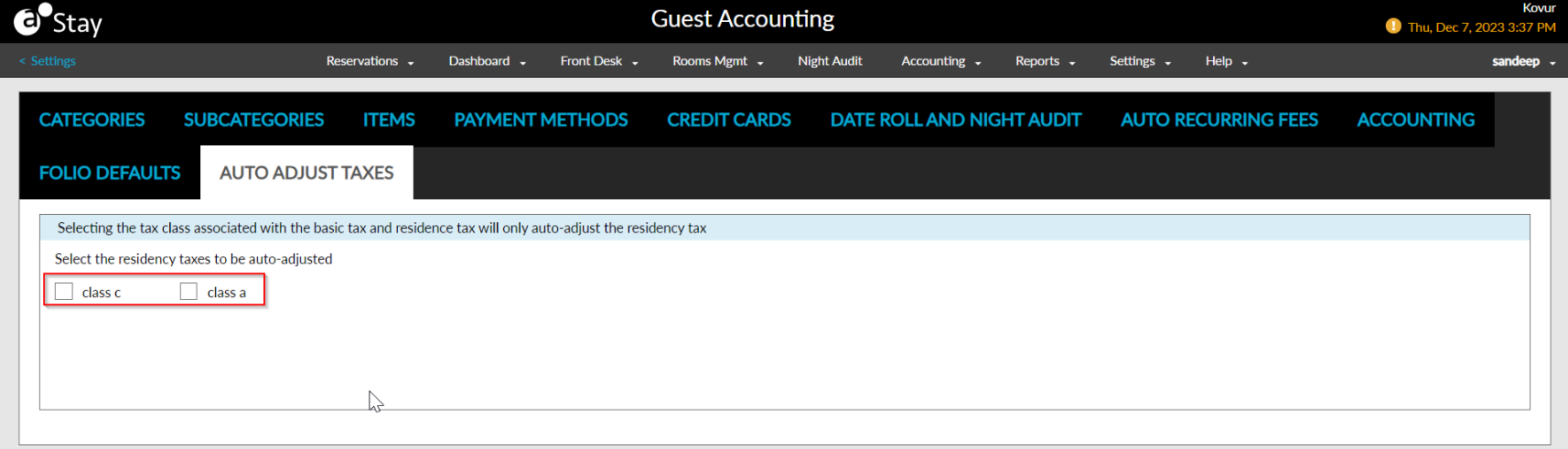
Based on the tax classes selected, the residency tax applied to the reservations until the guest qualifies as a resident is posted as a credit to the reservation folio. The other taxes applied to the reservations are retained. Also, when the transaction/inventory item that is used for posting the residency tax is associated with multiple tax classes, only the residency tax amount is auto adjusted and posted as a credit.
Auto Credit of Tax During Date Roll
The taxes that are posted to the folio and the taxes in the Estimated Charges section of the reservation that are yet to be posted are adjusted and credited. The Auto Credit Taxes task runs during the night audit and the tax amount is credited for the reservation when the guest qualifies as a resident before date roll. This task is triggered only when the Auto Adjust Taxes for Resident Guests feature setting is enabled.
For Auto Date Roll, users can select from the following options in the Auto Credit Taxes section in the Auto Date Roll tab of the Night Audit screen:
-
Continue auto date roll on auto credit tax failure: When selected, auto date roll will continue even if auto credit of tax fails.
-
Stop auto date roll on auto credit tax failure: When selected, auto date roll will stop even if auto credit of tax fails.
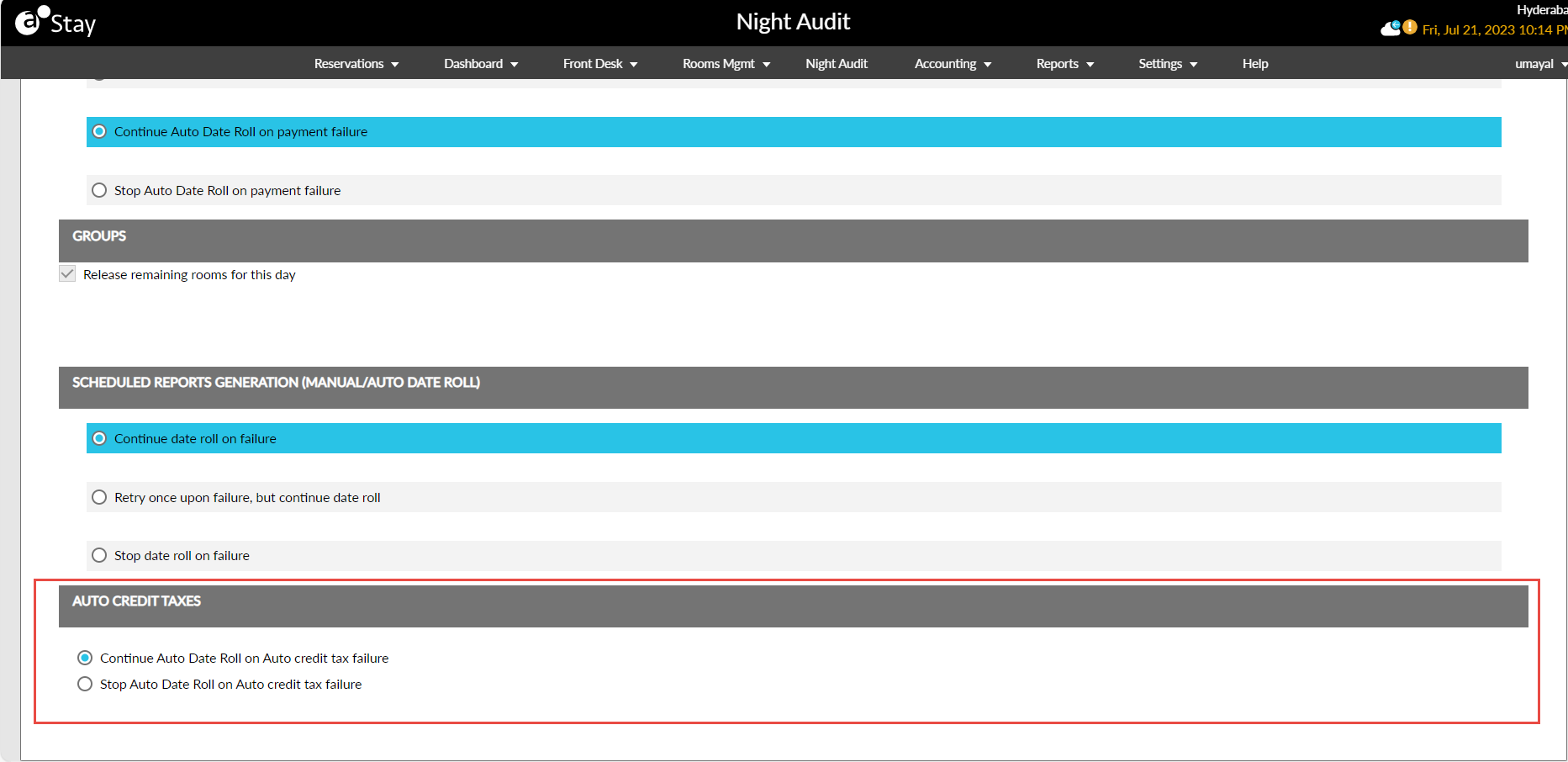
By default, the Continue auto date roll on auto credit tax failure option is selected.
-
When the Auto Credit Taxes task runs during the night audit, the tax amount is credited to the reservation folio.
-
When the auto credit of tax fails, a log is created in the Auto Credit Taxes section of the Auto Date Roll Error Log tab in the Night Audit screen. This section displays the date of failure, the confirmation number of the reservation and the reason for the failure.
Users can perform a Retry from the Auto Date Roll Error Log tab when the auto credit of tax fails for a reservation. Retry can be initiated until the next date roll. The Retry button is enabled only when a failed record exists for a reservation. This button is disabled when the tax credit is successful.
Auto Credit Tax in Folio
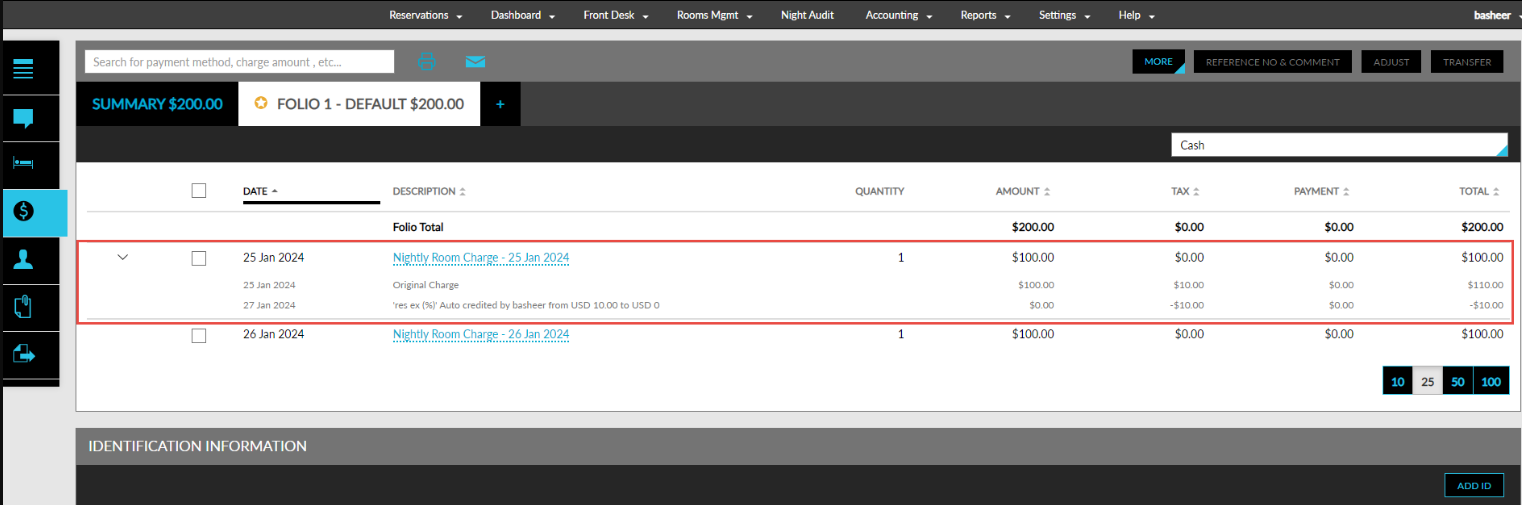
The auto credit of taxes is displayed in the same line item as that of the tax charge posting and not as a separate line item. The following table lists the various scenarios in which the taxes are credited:
|
Scenario |
Description |
|---|---|
|
When a single residency tax is associated with the charge |
The line item for the tax posted is updated with an accordion and the tax credit is displayed when the accordion is expanded. |
|
When multiple residency taxes are associated with the charge which achieves residency on same dates |
The auto credit is performed for both the taxes and the tax class names are displayed when users hover over the tax amount credited to the folio. |
|
When multiple residency taxes are associated with the charge which achieves residency on different dates |
The auto credit is performed on different dates for the residency taxes and a separate line item is displayed for each auto credit. |
|
When the posted charge exists in the same account |
The credit is posted in the same line item as that of the tax posting. The new value of tax and the reason for the auto credit is displayed in the line item. |
|
When the posted charge is moved to a different account manually |
|
|
When the posted charge is routed |
The tax amount is credit to the destination accounts based on the routing rule associated with the reservation. |
|
When the posted charge is routed, and the routing rule is deleted |
The location of the routed charge is identified from the Transfer History screen and the tax is credited to the account. |
|
When the destination account of the charge is closed |
The tax credit is posted to the origin account. For example, if a charge is routed from Reservation ➜ Group ➜ A/R and if the A/R account is closed, the tax credit is posted to the group. If a charge is moved to folio 2 of a reservation and if its closed, the tax credit is posted to the default folio. |
|
When the tax posted is adjusted partially at the origin account |
The credit for the tax is posted based on the adjusted tax amount. |
|
When the tax posted is adjusted partially at the destination account |
The credit for the tax is posted based on the adjusted tax amount. |
|
When the tax posted is adjusted entirely at the origin account |
Auto credit of tax is not applicable. |
|
When the tax posted is adjusted entirely at the destination account |
Auto credit of tax is not applicable. |
|
When the tax posted is corrected at the origin account |
The credit for the tax is posted based on the corrected tax amount. |
|
When the tax posted is corrected at the destination account |
The credit for the tax is posted based on the corrected tax amount. |
|
When tax is posted to reservations is share |
The credit for the tax is posted to all the reservations in share. |
|
When the tax posted is comped or moved to package folio |
Auto credit of tax is not applicable. |
|
When reverse comp is performed for the posted tax |
The credit for the tax is posted in the next date roll. |
|
When the posted tax is exempted |
The credit for the tax is posted for the days when the tax is not exempted. |
|
When the validity of the A/R account to which the tax is routed ends or when the credit limit of the account is exceeded |
The credit for the tax is not posted to the A/R account. |
|
When the folio is printed after crediting tax |
The actual value of the tax amount after the credit is posted is displayed. |
|
When the posted tax class associated with the tax posted expires before the guest qualifies as a resident |
The credit for the tax is not posted. |
Display Auto Credit of Tax in Reports
The auto credit of taxes is captured in the same line item as that of the posted charge or as a new line item if the destination account of the tax is closed, in the following reports:
-
Transactions Report (Legacy)
-
Transaction Details Report (Legacy)
-
Transaction Journal Report (Legacy)
-
Transaction Item Summary Report (Dynamic)
-
Transaction Item Details Report (Dynamic)
-
Transaction Journal Report (Dynamic)
Display Records in Transfer History Screen
The Transfer History pop-up screen that is displayed when users click the transfer history hyperlink for a transferred charge is enhanced to display all the accounts to which an item was transferred from the source account either manually or through a routing rule.
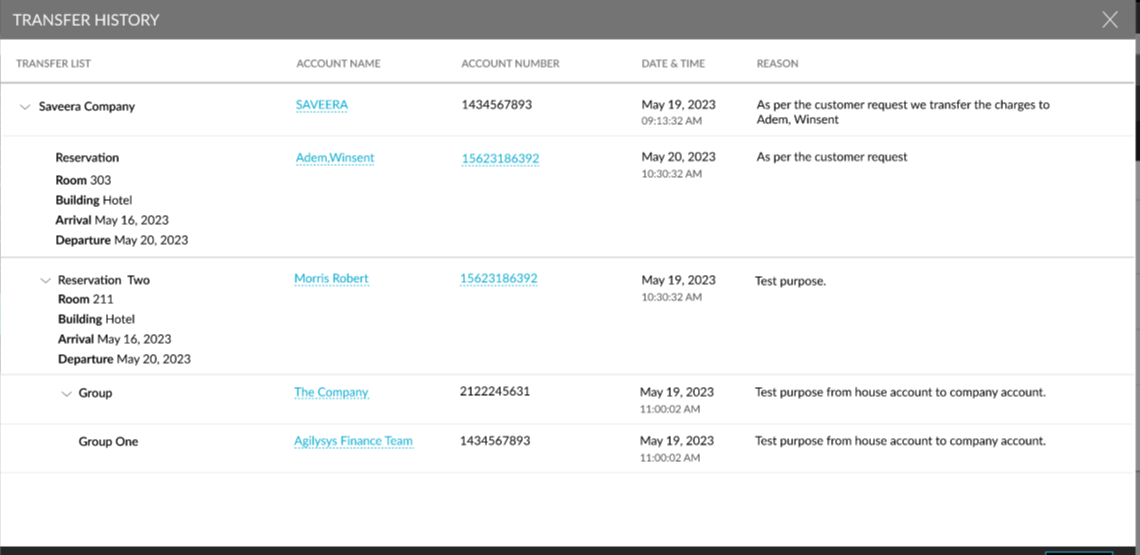
The following columns are displayed in this screen:
|
Column |
Description |
|---|---|
|
Transfer List |
Lists the destination account to which the charge was transferred with an accordion. When expanded the account details are displayed. |
|
Account name |
Displays the account name as a hyperlink. |
|
Account Number |
Displays the following account numbers for the accounts:
|
|
Date |
Displays the date when the transfer was made. |
|
Reason |
Displays the reason entered during the manual/automatic transfer. |
To support this enhancement, the following changes have been made:
-
A new tab, Auto Adjust Taxes, has been added to the Guest Accounting screen that allows users to select the tax classes that are applicable for auto adjustment.
-
A new task, Auto Credit Taxes, has been introduced that runs during the night audit and credits the tax amount to the reservations.
-
A new section, Auto Credit Taxes, has been added to the Auto Date Roll tab of the Night Audit screen that allows users to select from the following options:
-
Continue auto date roll on auto credit tax failure: When selected, auto date roll will continue even if auto credit of tax fails.
-
Stop auto date roll on auto credit tax failure: When selected, auto date roll will stop even if auto credit of tax fails.
-
-
A new section, Auto Credit Taxes, has been added to the Auto Date Roll Error Log tab of the Night Audit screen that displays the following details of the error log created for the auto credit tax failure: date of failure, the confirmation number of the reservation, and the reason for the failure.